 Machi Photos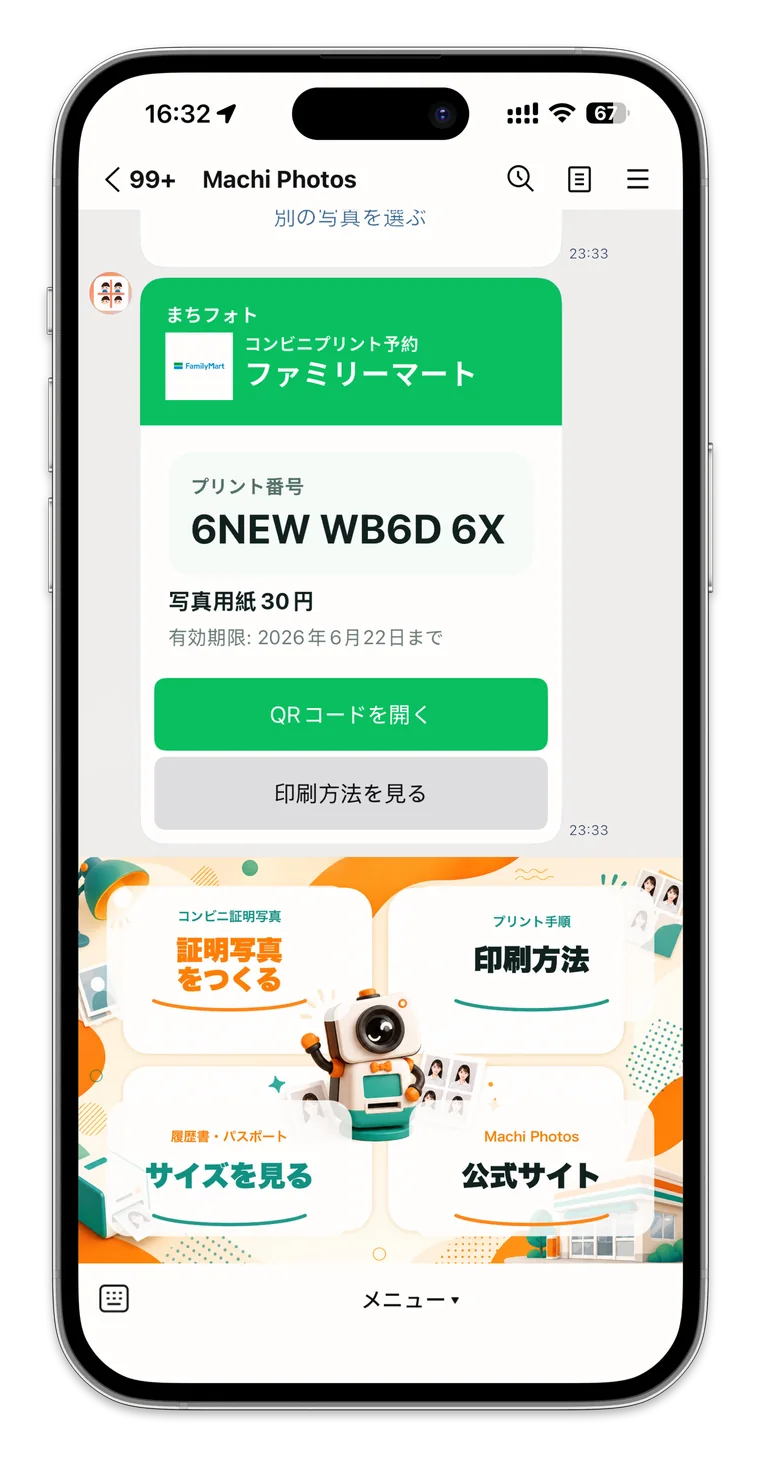
You can prepare an ID photo in Japan with your phone and a convenience-store photo printer. Machi Photos lets you upload a photo, choose the required size, adjust the background, create an L-size sheet, and issue a print reservation code in the browser. Creating the photo and issuing the code are free; the store charges the L-size photo print fee.
1. Choose the right ID photo size
Select the size for your use case, such as resume, passport, My Number Card, residence card, visa, driver license, or qualification exam. Common sizes include 30 x 40 mm for resumes, 35 x 45 mm for passports and My Number, and 24 x 30 mm for driver licenses.
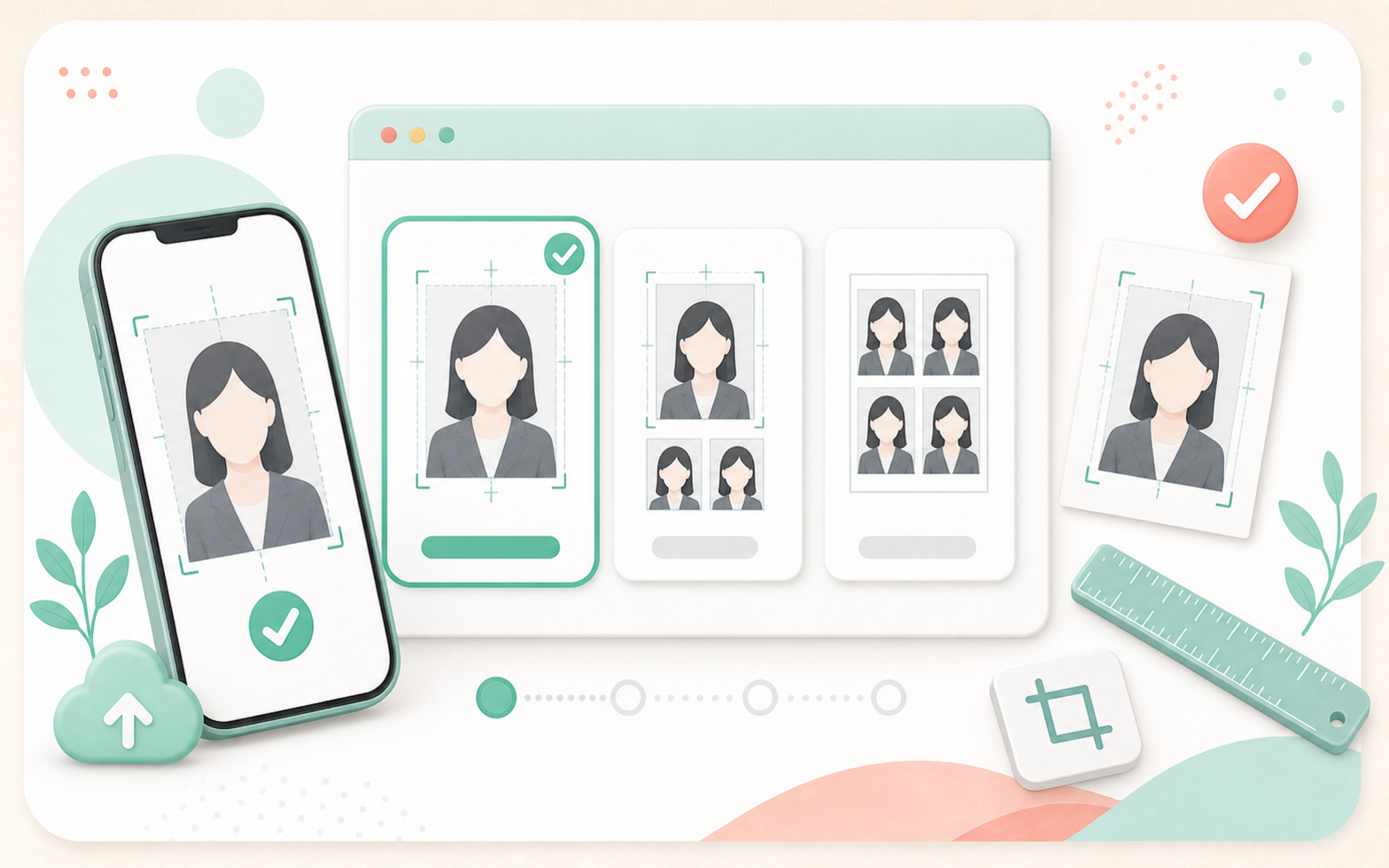
If the destination specifies width, height, background color, shooting date, glasses, or hats, follow those instructions first. You can use custom size when the preset list does not include the exact requirement.
2. Upload a phone photo and align the face
Use a front-facing photo taken in good light, then check the face center, headroom, and shoulders. If the background has shadows or furniture, you can change it to white or another plain color.
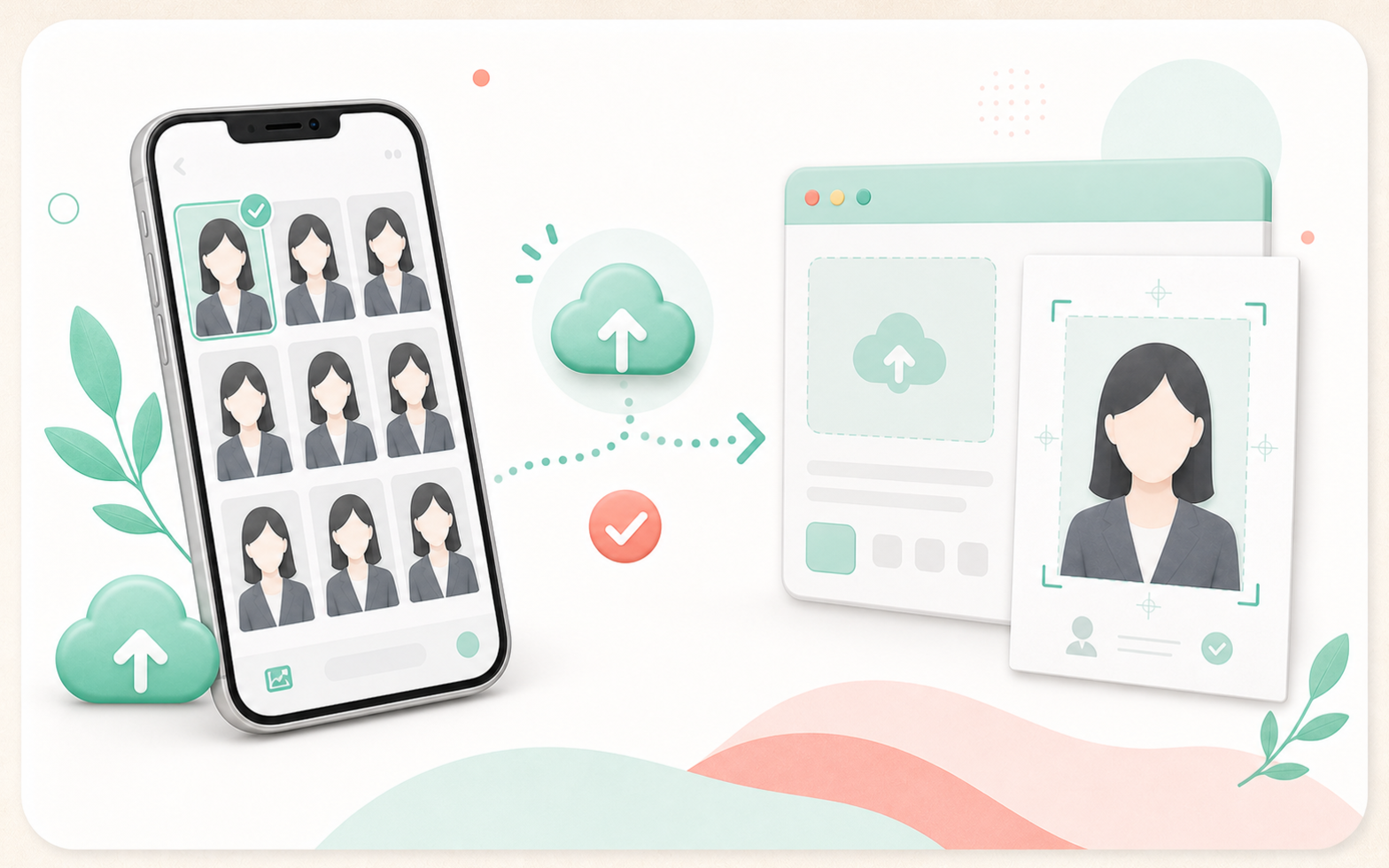
For resumes and exams, avoid photos where the face is too small, the head is cut off, the body is angled, or the eyes are hidden by hair or glasses glare.
3. Check the L-size print sheet
After editing, Machi Photos creates an L-size sheet for convenience-store photo printing. A 30 x 40 mm photo can fit 6 copies, while a 35 x 45 mm photo can fit 4 copies.
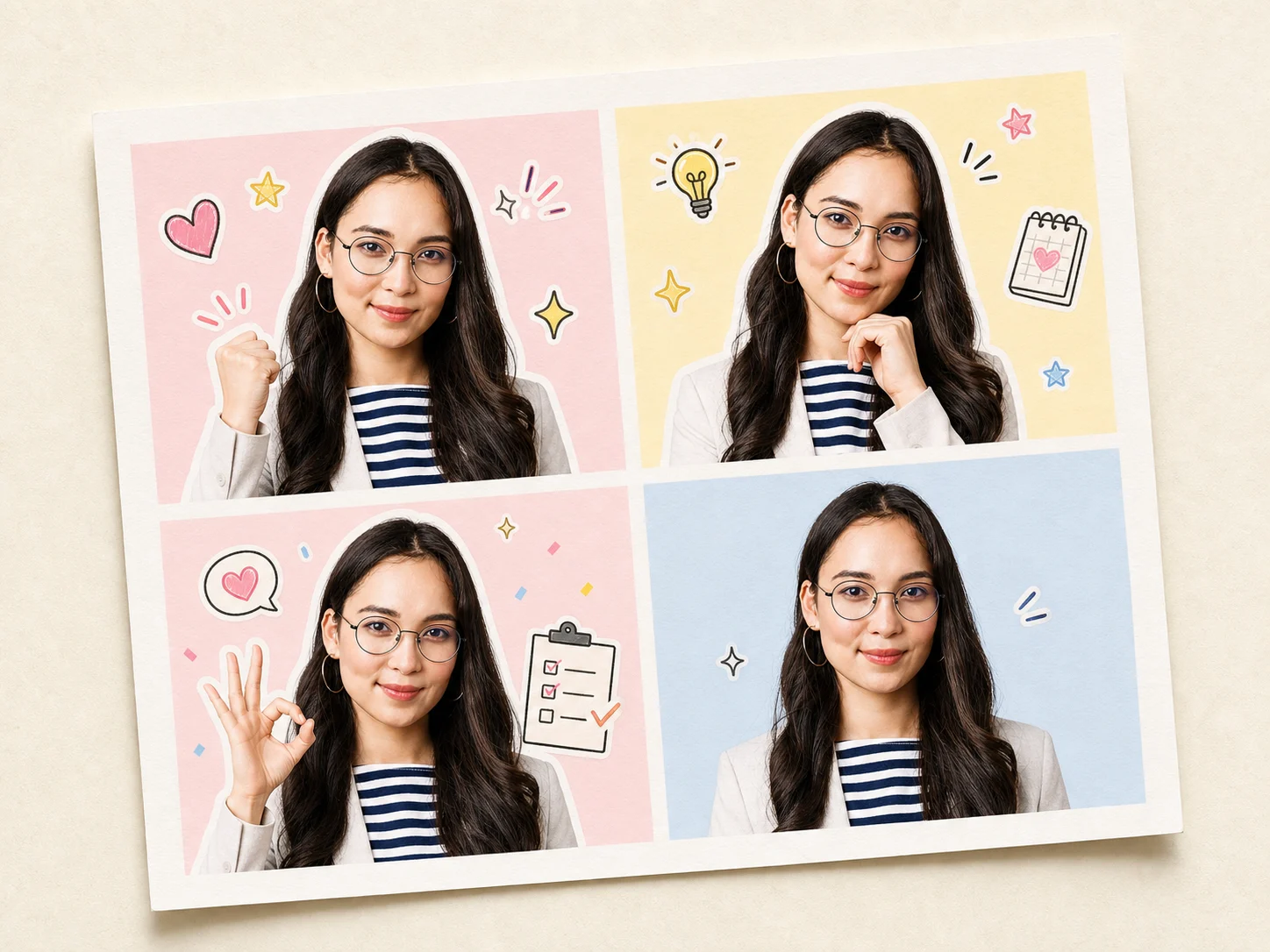
Check the layout before printing. Even if you only need one photo, extra copies on the same L-size sheet can be useful as backups.
4. Issue a convenience-store print code
When you continue to printing, you can issue a reservation number or QR code for supported stores. Choose the store in Machi Photos and use the displayed code at the multifunction copier.
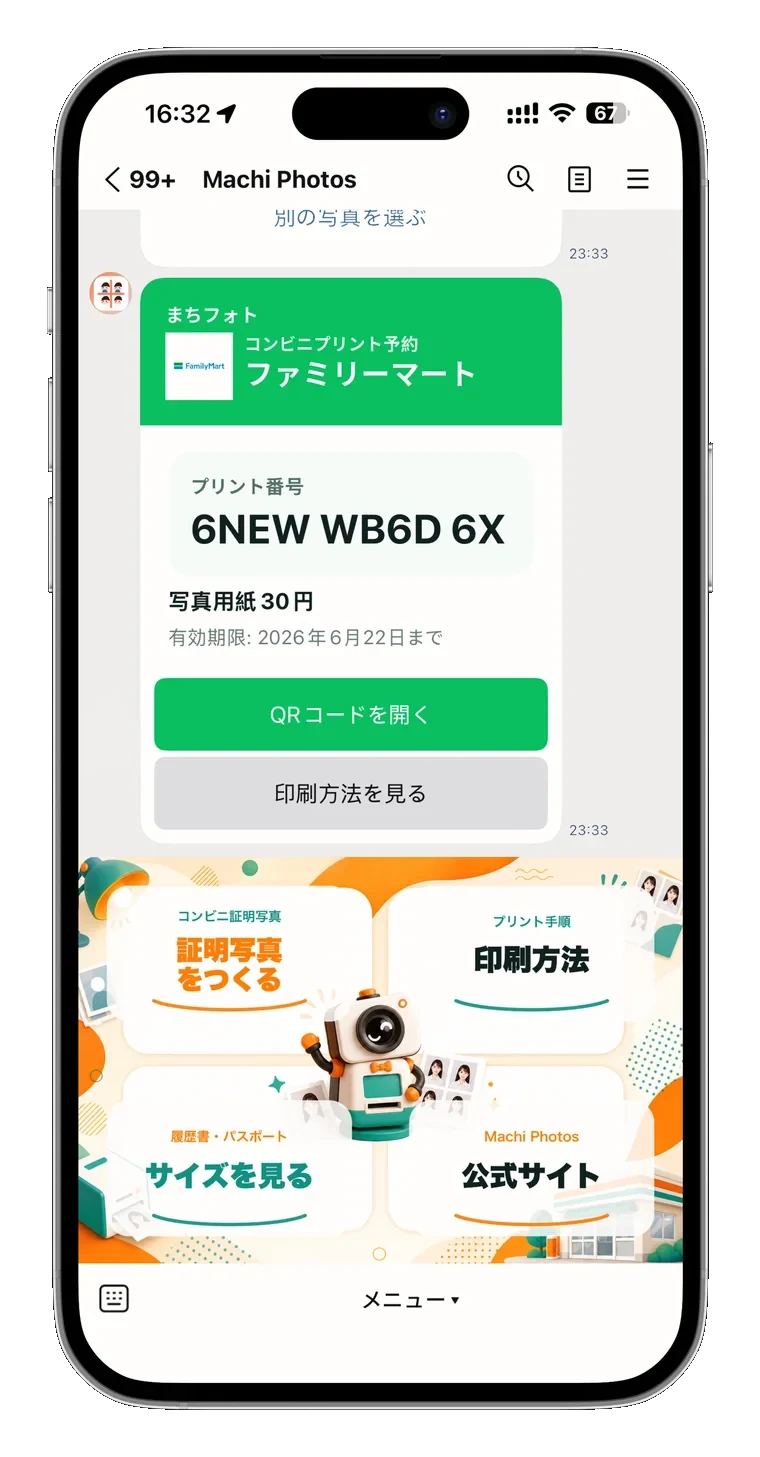
The screens and supported flow differ by store, including 7-Eleven, Lawson, and FamilyMart. Before printing, confirm L-size photo print, copies, and price on the machine.
5. Print the L-size photo at the store
On the copier, choose photo print, enter the reservation number or scan the QR code, confirm the preview, select L-size photo paper, and print.
The print fee is not charged by Machi Photos. It is the store copier's photo print fee, so confirm the final amount on the store screen.
Need an ID photo you can print at a convenience store?
Create an ID photo