 Machi Photos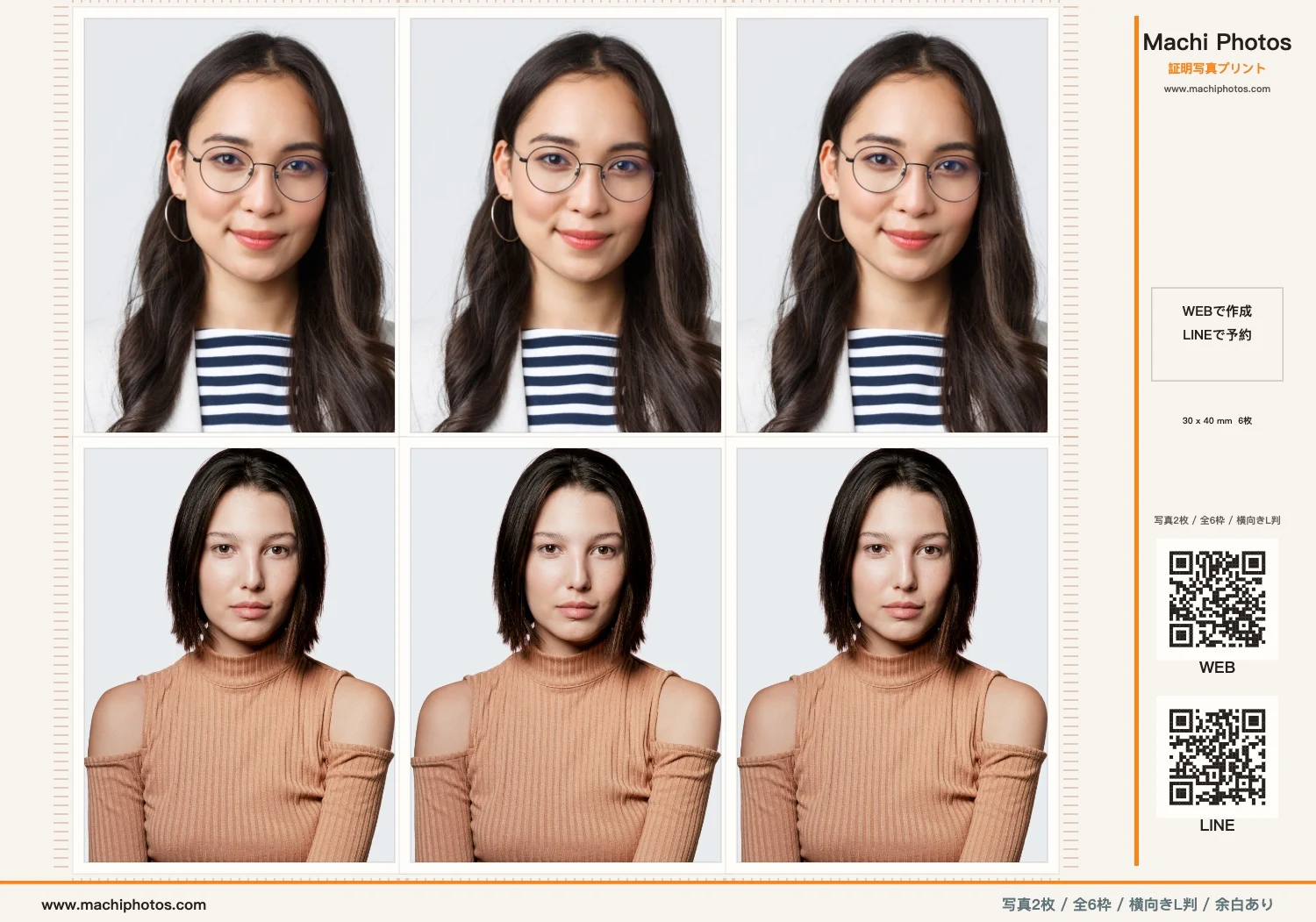
If you need ID photos in Japan, you do not always need to find a photo booth. Machi Photos lets you choose the right photo size, upload one or more images, check the print preview, and generate a reservation code for convenience-store printing. This guide is useful if you are searching for ID photo printing at 7-Eleven Japan, FamilyMart, or a nearby convenience store.
Choose the purpose and size
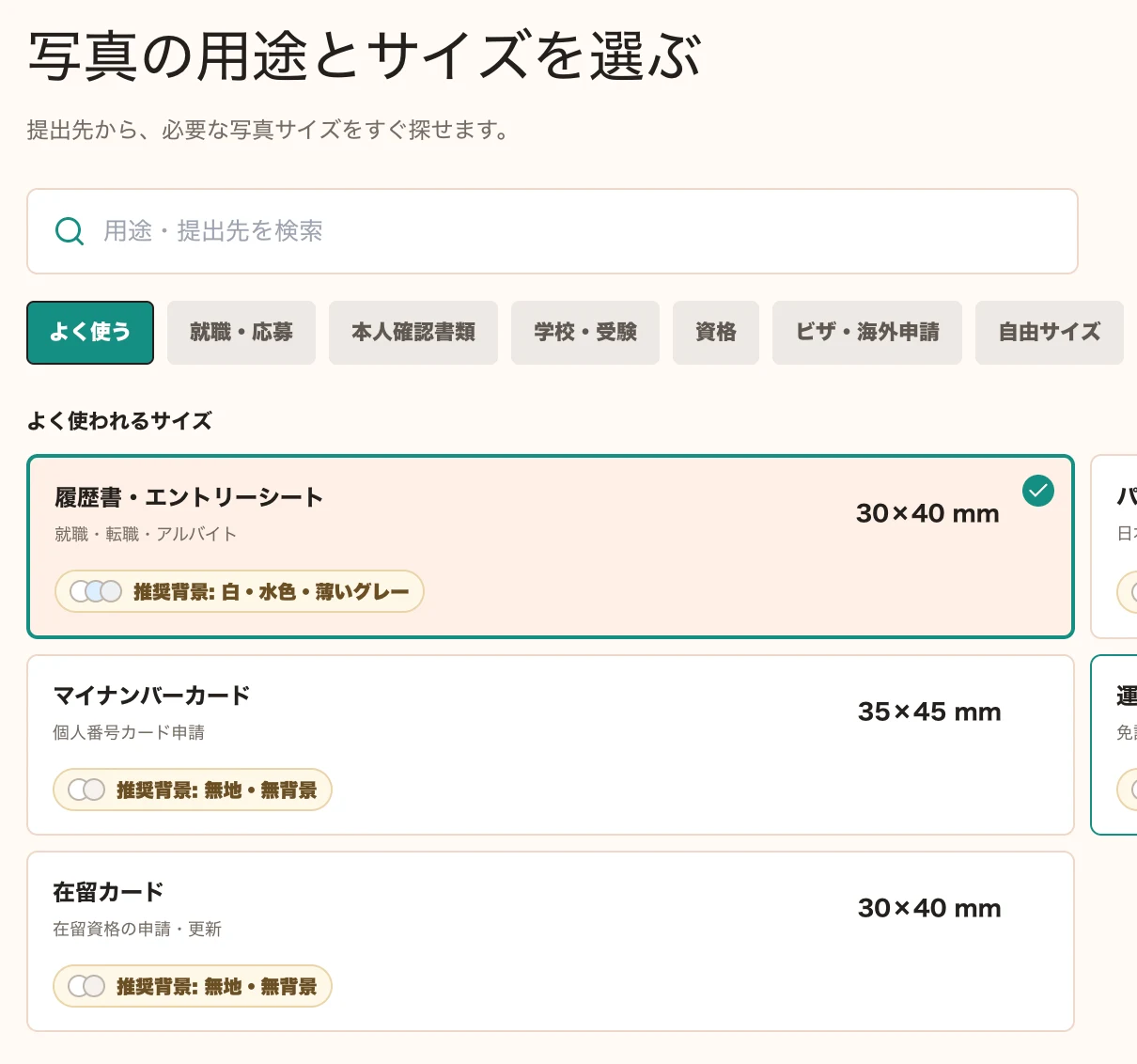
Start with the document type: resume, job application, student ID, identity verification, residence card, My Number Card, qualification exam, visa, or custom size. In the example, the resume size is 30 x 40 mm. Some applications have strict rules, so always confirm the requirements from the receiving organization before submitting.
Upload one or multiple photos
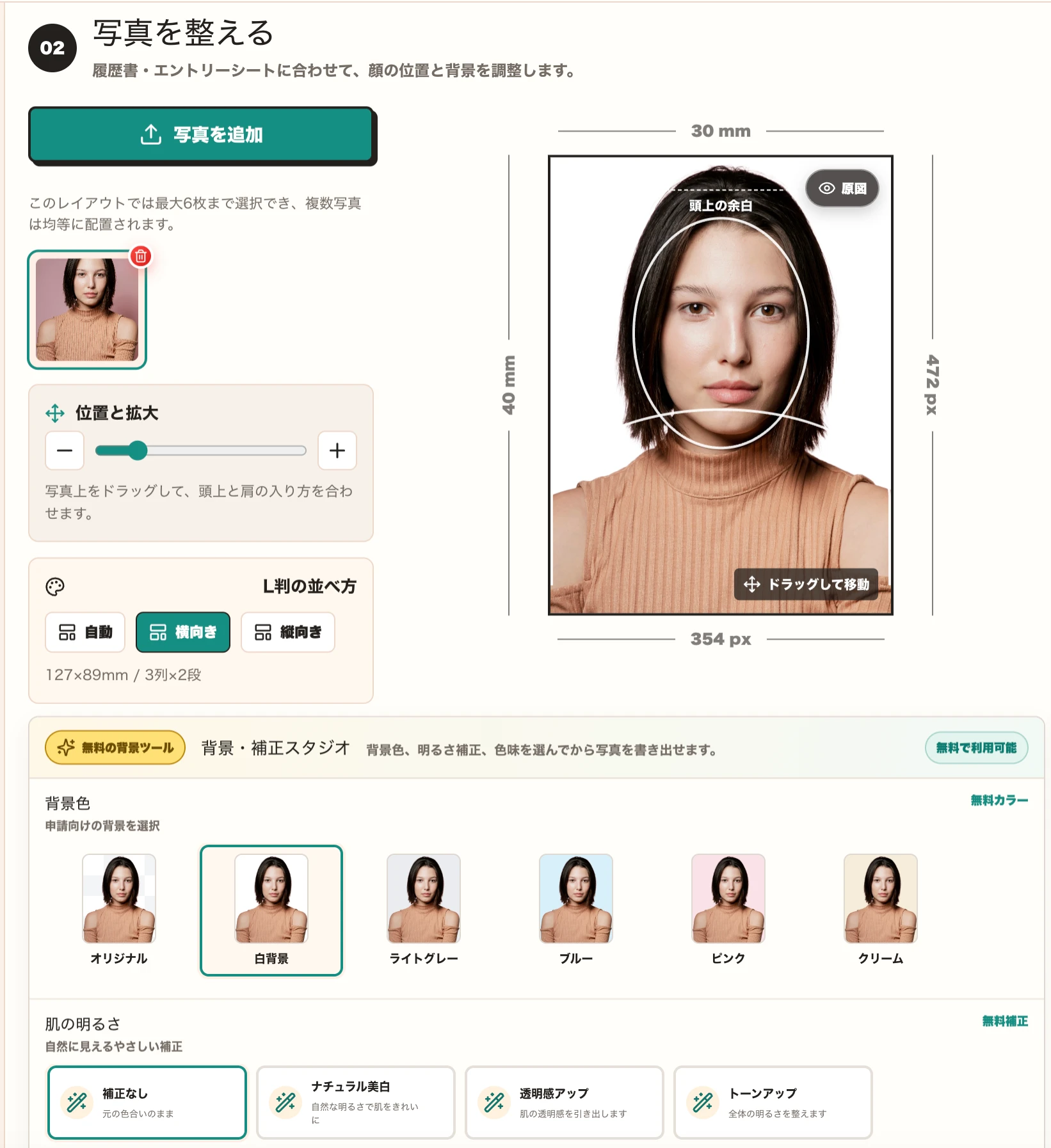
Use the upload button to add your photo. This L-size layout supports up to six photo slots, so you can print several copies of one image or combine two different photos on the same sheet.
After uploading, select a photo and adjust its position. Drag and zoom until the face, headroom, and shoulders fit the guide. The editor shows a 30 mm x 40 mm crop area and pixel dimensions so you can preview the final output more confidently.
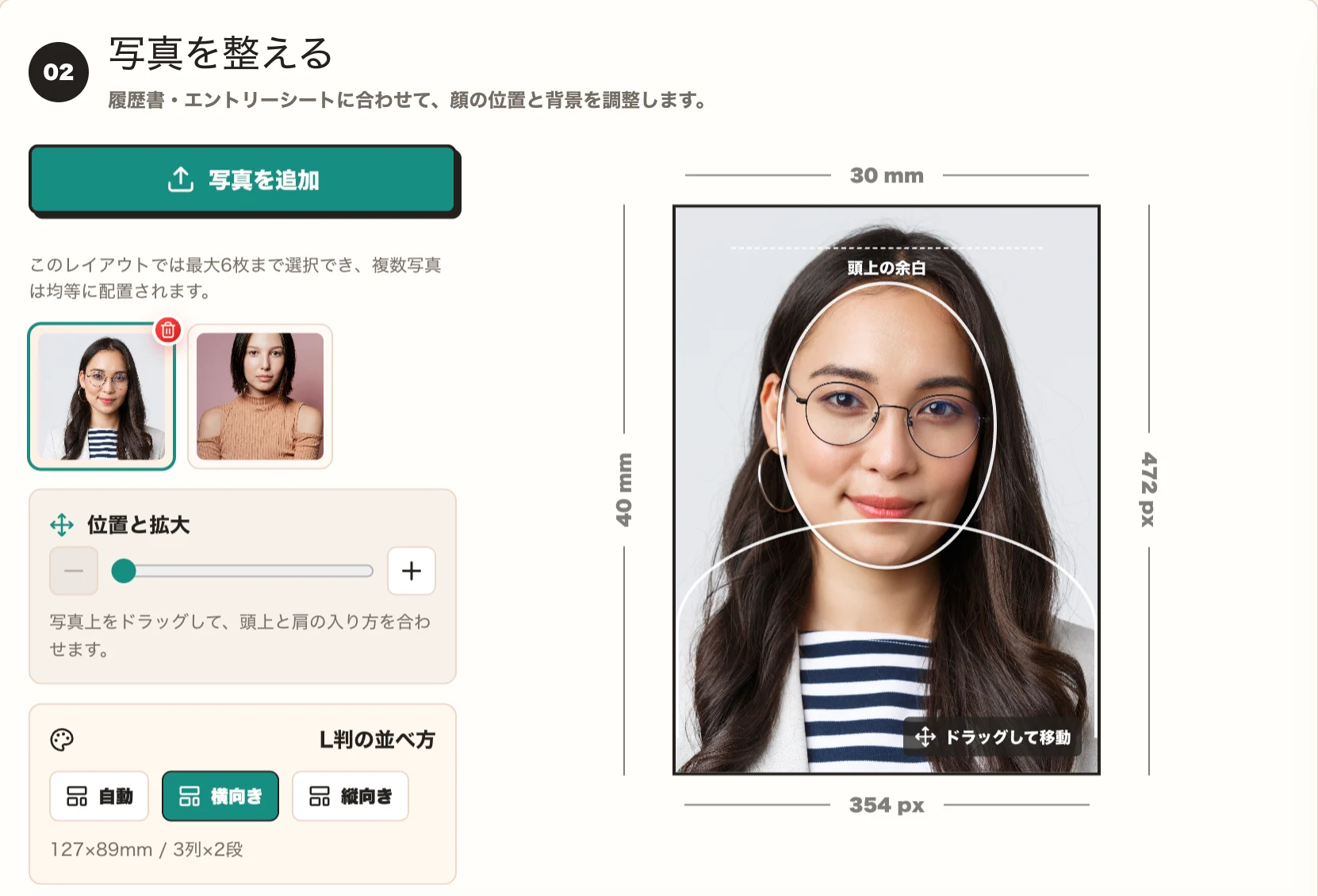
When multiple photos are uploaded, use the thumbnails to switch between them. You can choose automatic, horizontal, or vertical L-size arrangement. The example uses a horizontal 127 x 89 mm sheet with a 3 x 2 layout.
Create a printable ID photo now
Create ID PhotoPreview the L-size print sheet
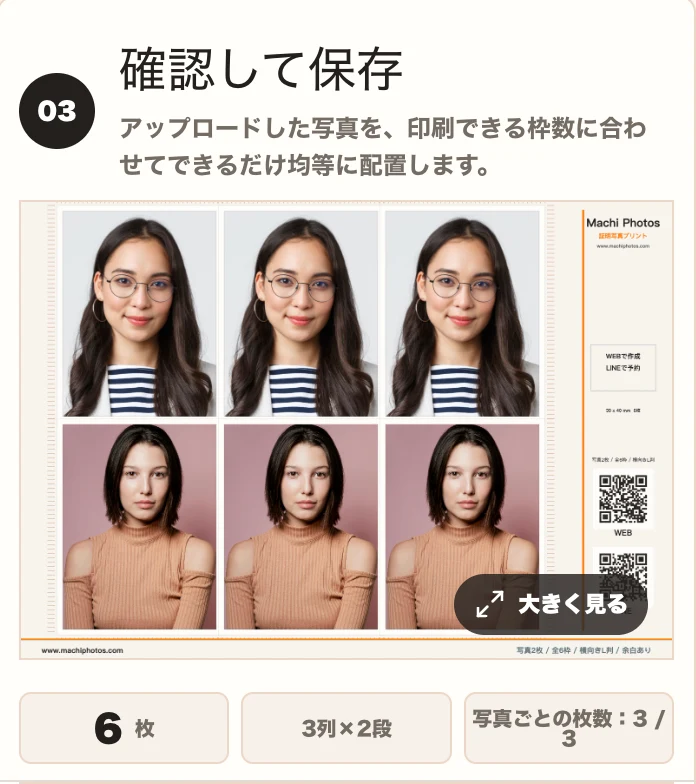
Before saving, check the full print preview. In this example, one L-size sheet contains six photos in a 3 x 2 layout. Confirm the crop, direction, margins, and number of photos before saving.
Generate a convenience-store reservation code
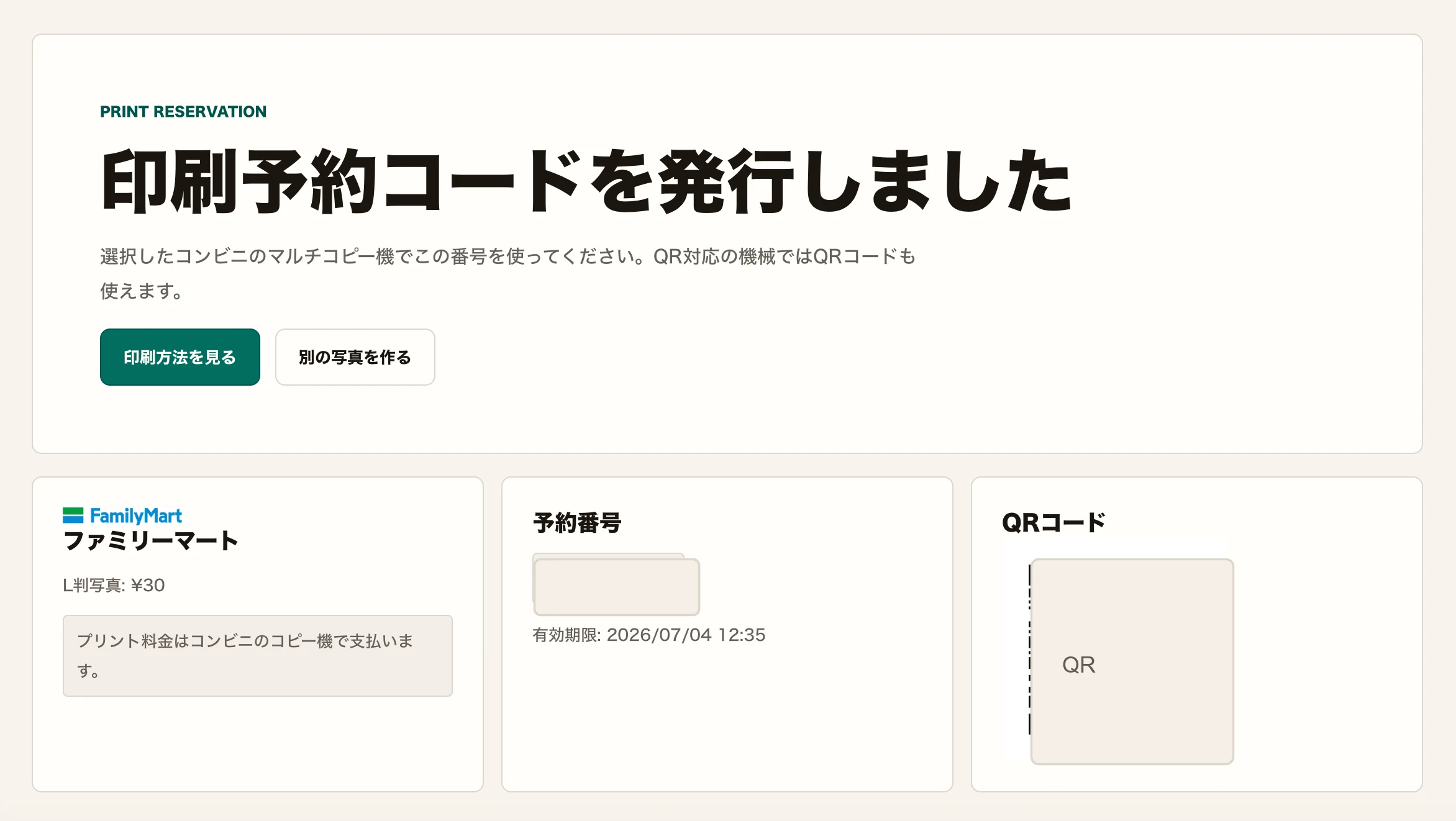
After saving, continue to convenience-store print reservation. The result page shows the selected store, print type, reservation number, expiration time, and QR code. At the store, enter the reservation number on the multi-copy machine; on supported machines, you can use the QR code.
The example shows a FamilyMart L-size photo reservation. Payment is made at the store machine. Prices and expiration times can change, so check the actual reservation screen and the in-store machine. The reservation number and QR code in the image are hidden for safety.
What the real print sheet looks like
The final L-size sheet places the ID photos on the left and keeps Machi Photos information on the right. It works well when you need several ID photo copies or want to print two sets on one sheet.
Quick checklist
- Confirm the required size and background color with the receiving organization.
- Check face position and headroom for every uploaded photo.
- Reservation numbers and QR codes expire, so print within the displayed period.
- Recheck preview, size, and quantity on the convenience-store machine before payment.