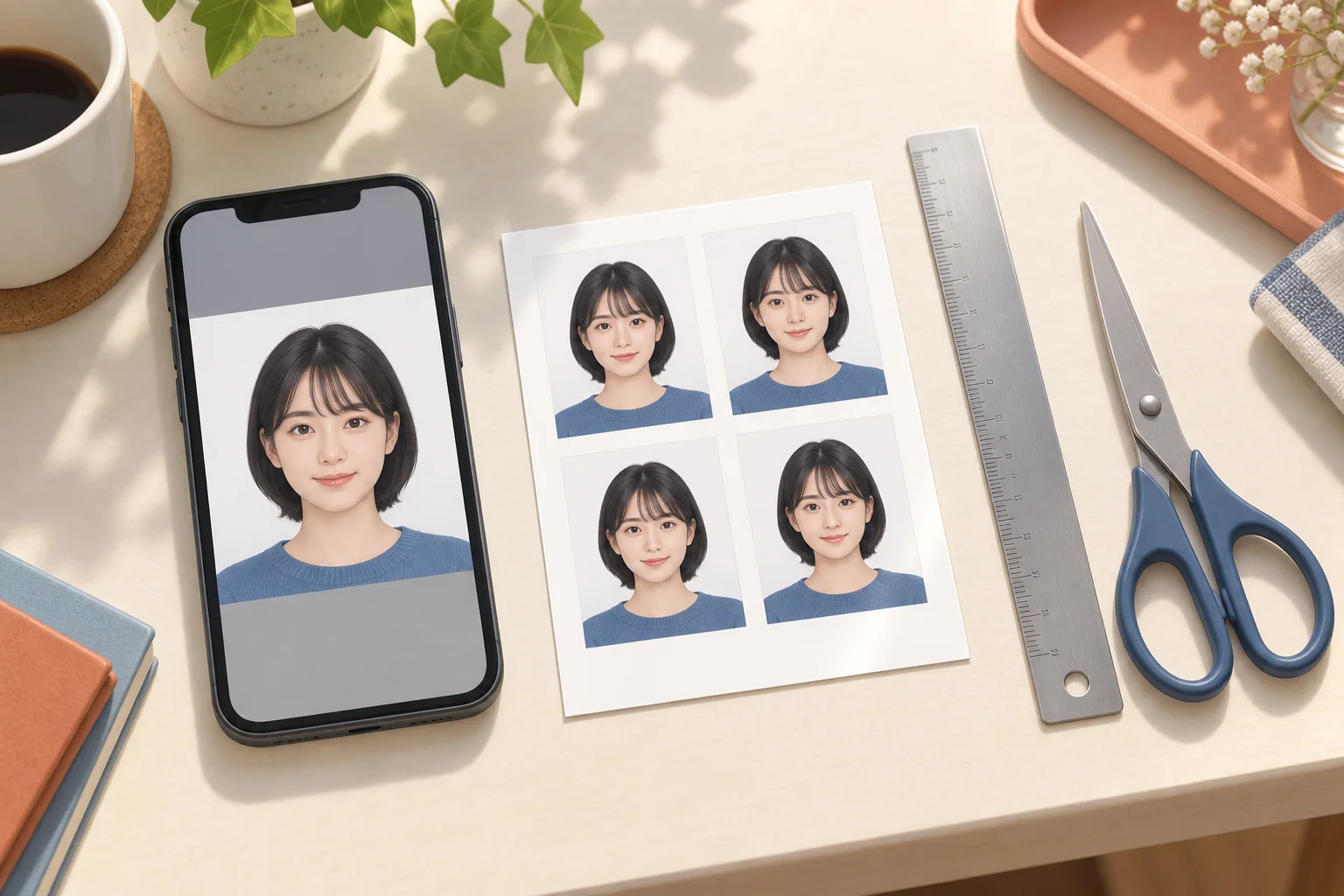
Check why an iPhone portrait will not upload, export a real JPEG on supported Apple devices and distinguish file conversion from resizing or preparing a print sheet.
AI-generated illustration of photo preparation; not an app screenshot or an actual printed sample.
Renaming a file does not convert its image format
A photo can open on your phone while remaining unsupported by an application website. Inspect its file information. If HEIC/HEIF is not accepted and JPEG is requested, export the image as JPEG. Changing the filename ending to .jpg is insufficient. Keep the original and save the converted copy separately so you can retry without accumulating compression damage.
Export with Preview on a supported iPhone
On an iOS 26 iPhone with Preview, open the image, use the menu beside its filename, choose Export and select JPEG. Open the saved copy to verify it. If Preview is unavailable on your device, these steps do not apply directly; use a supported JPEG export method such as the Mac workflow below.
Save a JPEG using Preview on Mac
Transfer the original image to your Mac and open it in Preview. Choose File, then Export, select JPEG and save a separate copy. Adjust quality if needed and inspect the resulting orientation and facial detail. Conversion changes the format; it does not automatically satisfy the recipient's pixel dimensions or file-size limit.
Choose JPEG for future photos and check the final file
On supported iPhones, Settings → Camera → Formats → Most Compatible selects JPEG for subsequent ordinary photos. It does not convert existing images. Before submitting, check that you selected the converted single portrait, that its dimensions and size meet the instructions, and that the face remains clear and natural. An L-size sheet from Machi Photos is intended for printing, not as a substitute for an online portrait file.
200 KB, 500 KB or 2 MB limits
Check whether the portal specifies a minimum, maximum or both. Pixel dimensions and file size are different. Export in the accepted format, adjust compression gradually and check the resulting file's actual size and facial detail. Renaming PNG to JPG is not conversion. A file under 200 KB is not automatically suitable if the portal requires a larger minimum.
Official references
Continue with the next step
- ID photo printing problems: wrong size, cropped faces and dark prints
- Arrange ID photos on an L-size sheet: 30×40 mm and mixed sizes
- Prepare a digital ID photo: pixels, JPEG and upload size limits
- Electrician exam photos in Japan: phone preparation and upload
- Japan care worker exam photo: phone capture and online application
- Read the full guide
- Read the full guide